AI Language Learning Video Generator: Create Vocabulary Shorts in Minutes
Learn how language teachers can use Lingo Creator to turn vocabulary topics into editable short-video batches, then fine-tune wording, visuals, pacing, and classroom details.
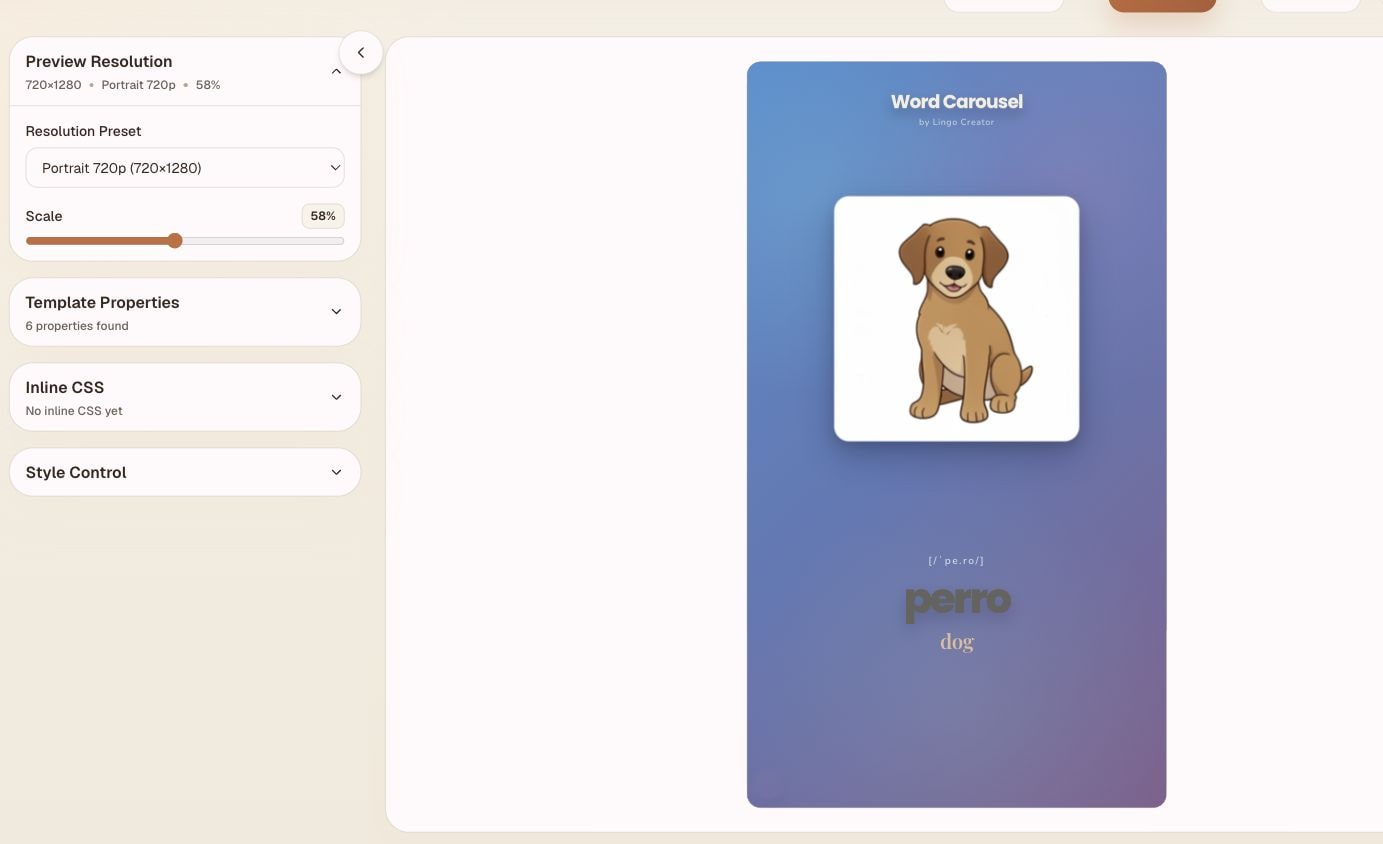
Short vocabulary videos are useful for language teachers because they make repetition visual, focused, and easy to reuse. The hard part is production: every clip needs a word list, student-friendly images, pronunciation support, timing, layout, and a clear teaching rhythm.
Lingo Creator is built to make that workflow faster without taking the teacher out of the loop. You describe the lesson goal, choose the learner level and style, and generate video-ready vocabulary shorts without preparing every image, script, and layout by hand. After the draft is generated, you can still fine-tune the details before using it with students or publishing it as a short-form lesson.
Made for language teachers, not just video editors
A general video editor starts with a blank timeline. A language lesson starts with a teaching goal. For example, you may want students to review animal words, classroom objects, food adjectives, or useful travel phrases.
Lingo Creator keeps the language-learning structure at the center of the workflow. Instead of manually building every scene, you can start from a topic, learner level, source language, target language, and reusable template. The generated result already has the pieces a language teacher expects: vocabulary, translation support, visual context, pacing, and review-friendly repetition.
Create a first video in minutes
For a vocabulary short, a teacher can begin with a simple brief: the topic, the learner level, the number of words, and the kind of support students need. Lingo Creator can turn that into a first draft with words, images, script, audio, and a previewable layout.
That first draft is useful because it removes the blank-page work. Teachers do not need to start by searching for images, writing every line from scratch, or rebuilding the same visual structure for each new word list.
Generate batches instead of rebuilding one by one
Many language teachers do not need only one short. They need a repeatable set: one short for food words, one for classroom objects, one for travel phrases, and another for review.
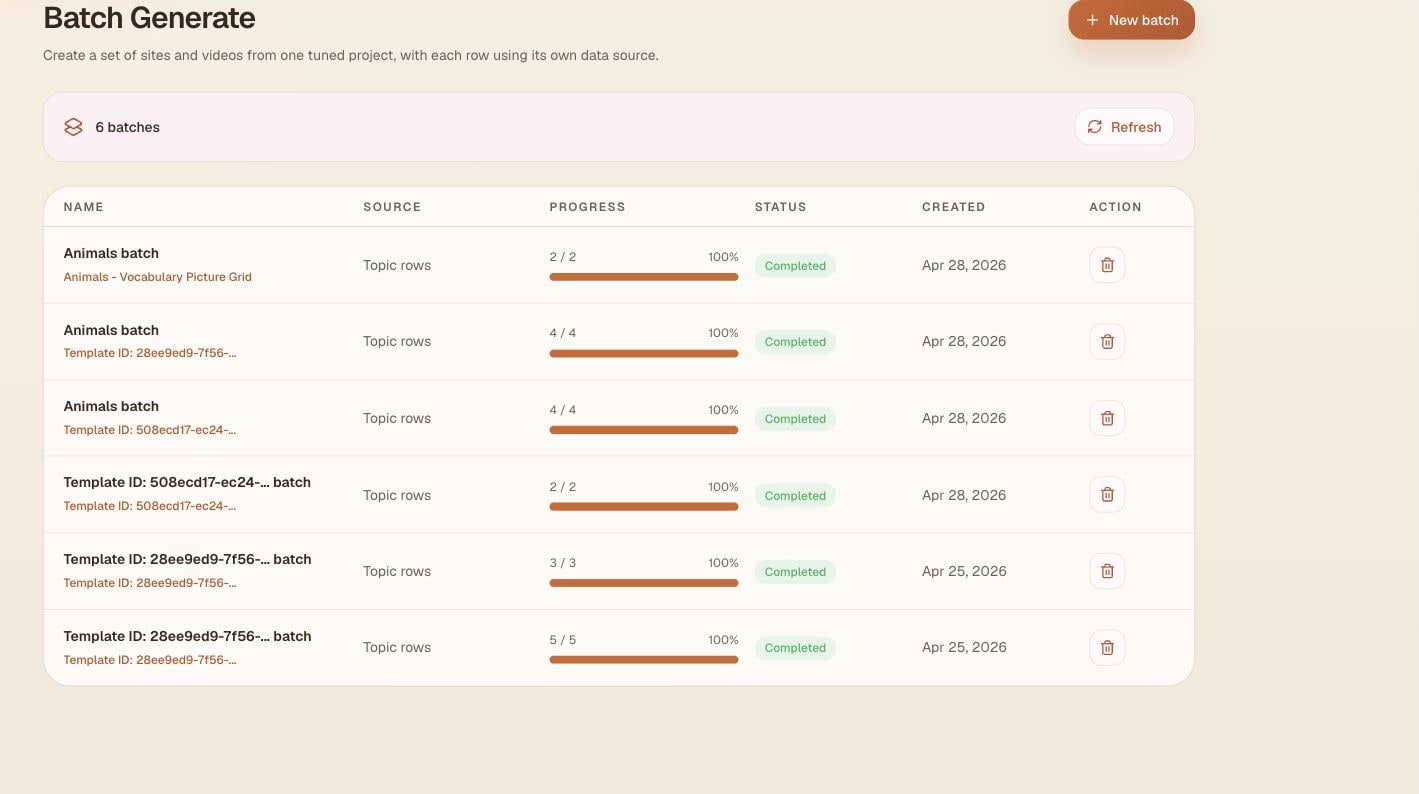
The Batch Generate dashboard lets you reuse a tuned project and create multiple lesson-ready outputs from topic rows. In the screenshot below, each batch row shows the source, progress, status, and created date, which makes it easier to manage a set of vocabulary shorts as a teaching library rather than as separate editing projects.
Fine-tune the draft after generation
AI generation is most useful when teachers can still adjust the result. A classroom-ready short often needs small changes: a clearer image style, slower pacing, simpler wording, a different voice, or a more natural translation.
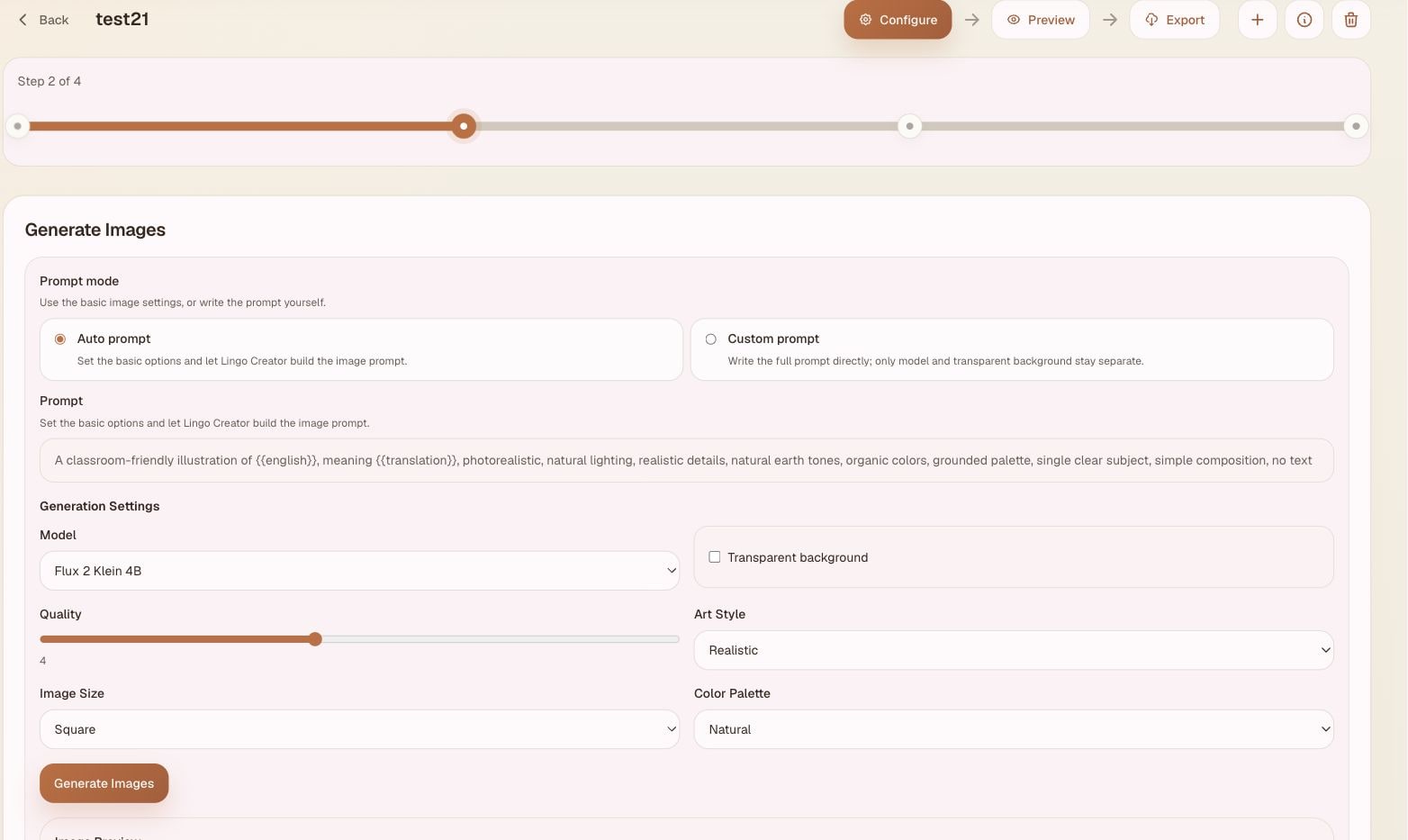
Lingo Creator keeps those controls visible in the dashboard. In the Generate Images step, teachers can switch between auto and custom prompts, adjust the art style, image size, color palette, model, and quality, then regenerate the visuals without rebuilding the lesson from scratch.
This matters because small edits often make the difference between a nice-looking video and a useful classroom resource.
Preview before you export
Before a teacher shares a video with students, the lesson should be easy to review. The preview page lets you check the vocabulary, images, pronunciation support, and layout in context. You can confirm that the words are readable, the images match the teaching goal, and the sequence feels appropriate for the learner level.
Once the preview looks right, the same project can move into export and reuse.
A practical classroom workflow
A simple teacher workflow can look like this:
- Choose a topic, such as classroom objects or animal vocabulary.
- Select the learner level and support language.
- Generate a batch of short-video drafts.
- Review the words, translations, and example sentences.
- Adjust pacing, visuals, and wording for your class.
- Preview the final layout before export.
- Reuse the same structure for the next topic.
This turns video creation into a repeatable teaching workflow instead of a one-off editing project.
Example prompt for a vocabulary short batch
Try this lesson brief:
Create 12 beginner English vocabulary shorts about classroom objects for Chinese-speaking learners. Each short should show one word, a simple Chinese meaning, one short English example sentence, and a final review question. Use a warm classroom style and keep the pacing slow enough for students to repeat aloud.
From there, a teacher can refine the output for the exact class: fewer words for younger learners, more example sentences for older students, or a faster pace for review.
Why this saves teacher time
The biggest value is not just making one video faster. The value is making language-video creation repeatable.
When the structure is reusable, teachers can spend less time formatting slides and more time improving the lesson. You can keep the parts that work, adjust the parts that need classroom judgment, and generate more materials for the next topic with the same teaching rhythm.
Start with one vocabulary topic
If you are trying Lingo Creator for the first time, start small. Pick one topic, generate a short batch, and fine-tune it until it matches your class. Once the structure feels right, reuse it for the next lesson.
Create from this workflow
Turn vocabulary ideas into short-video drafts
Use Lingo Creator to generate vocabulary shorts, refine the pacing, and reuse the same lesson structure across future posts.